| Bookmark Name | Actions |
|---|
Sign In to Spotlight Application
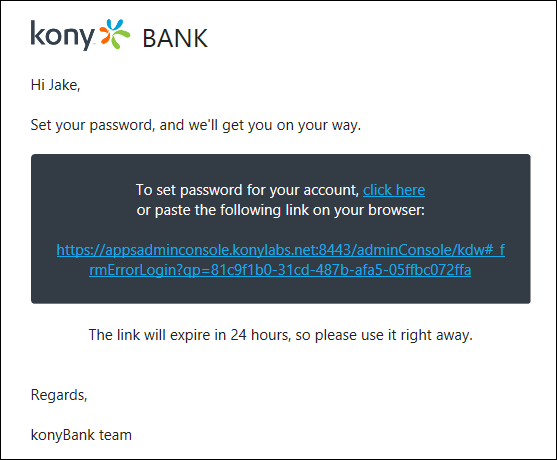
After you open the web-based Spotlight application, the app displays the Sign In screen. Sign in to the application securely by entering the user ID and password combination. If you are a first-time user, you should have already received an account activation email with your User ID and an activation link to set your password and activate your account to access the application.
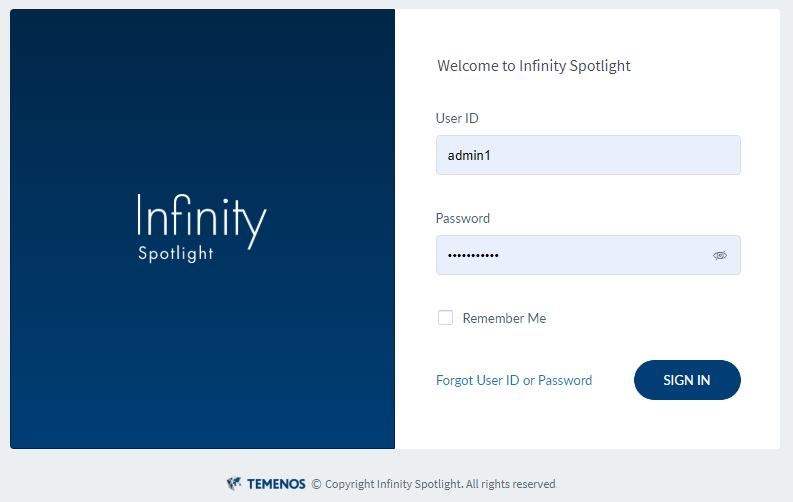
User ID
The user ID is a mandatory field. Note that the web browser's auto-suggest is disabled for the field.
Password
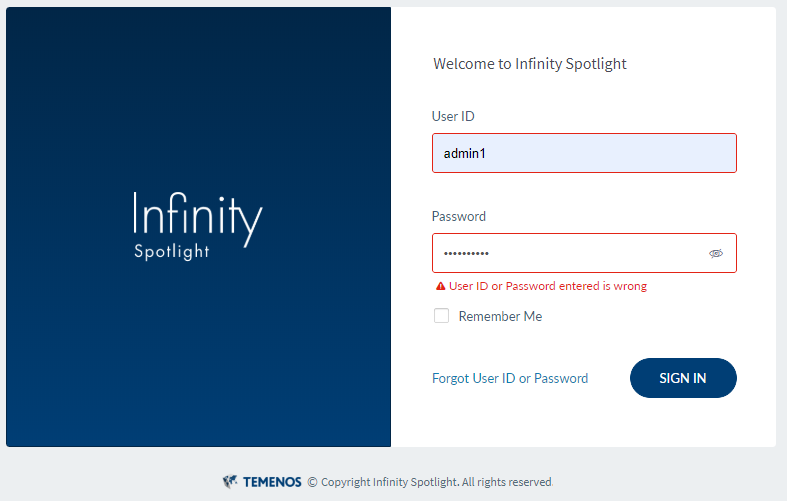
The password is mandatory field. The field is case-sensitive and masked while typing, but you can view the password on clicking the eye icon. In case you enter an incorrect password, the app displays an appropriate message. Note that the web browser's auto-save for passwords is disabled to prevent auto-fill of passwords.
NOTE: If the credentials (user ID and password) are incorrect or expired, the application displays an appropriate message.
Remember Me
Click the Remember Me check box for the app to remember the user ID and display during subsequent logins. A user can disable Remember Me for own account to remove it from the list.
Sign In
Click Sign In. The app displays the dashboard screen.
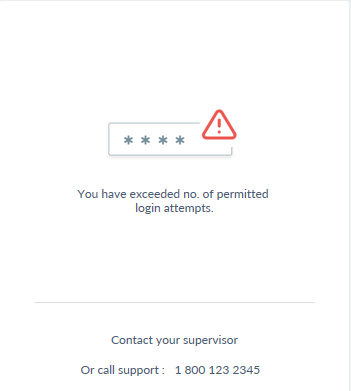
The account will be locked in case of multiple incorrect password entries. The default invalid attempts is set at five attempts. The application will prompt a warning after four attempts. Your account will be locked after one more incorrect attempt. In case a user account is locked, the app displays an appropriate message and the customer has to raise a request to the CSR to unlock the account.
The user has to raise a request to unlock and re-activate the account. If locked, the status of this user changes to Suspended. Admin with right permissions can change the status by using Activate option in the users screen.
NOTE:
- The app logs off automatically after the session has been inactive and reached the predefined time-out factor in the application. The default session timeout is five minutes.
- The features available to you in the application depends on your role and permissions associated with the role.
Configuration
- Configure the allowed number of incorrect attempts. Only the super administrator can set up the values.
- Configure the ideal time out time for the admin user. Only the super administrator can set up the values.
- Configure the password policies for the bank/credit union.
You can also retrieve your login credentials in case if you have forgotten your User ID or Password.
Add Bookmark
save your best linksView Bookmarks
Visit your best links BACK
BACK


Are you sure you want to log-off?